Devices
Find a customer's trackers, distinguish service activation from data reception, and check the latest available position. Learn what happens when you activate a device from the hosting panel.

The Devices section helps you support customers: find a tracker, check its service activation and inspect the latest available data. It is not a monitoring map or a full device configuration editor.
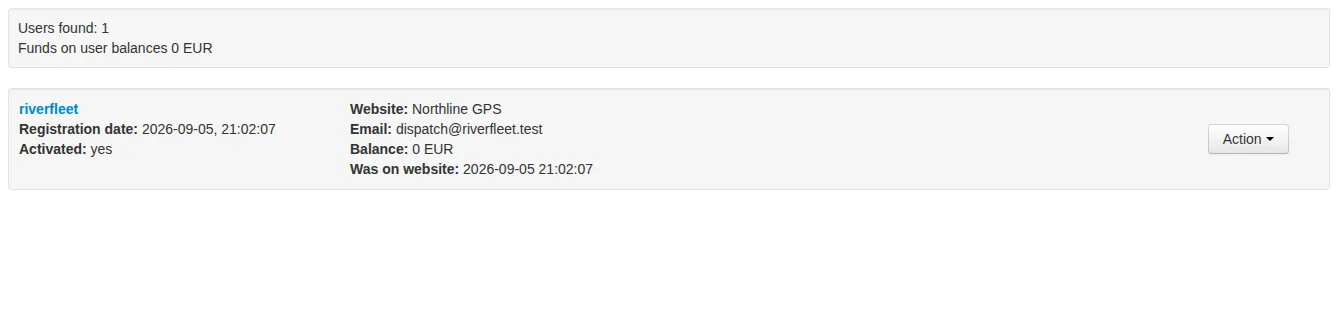
We will continue with Northline GPS. The riverfleet customer now has two trackers, Van 01 and Van 02, on the Fleet plan at EUR 5 per device per month. All identifiers and readings in the screenshots are demonstration data. The first tracker is activated and has a position record; the second is not activated and has no available data.
Where devices are added and configured
Devices are added, renamed, configured and removed in the customer's account on your website, under Settings. There is no Add device button in the hosting panel's Devices section.
First, create the customer account and provide access. The customer adds the tracker, or you assist them as part of your agreed service. The selected model and identifier must match the actual device. Configure the hardware using the instructions for that model; this chapter does not replace those instructions.
Adding a device record to an account and receiving positions from the physical tracker are separate tasks. After connecting it, check both its service status and incoming data.
Find a device
Open Devices in the hosting panel's top menu. Each entry shows:
- the customer's login, which opens their account record;
- the device adding date, not the time of its latest position;
- Activated: yes / no;
- the IMEI or identifier used by the device, its model and name.
The summary above the list counts matching devices and how many are active or inactive. It follows the selected filters. Larger lists are split into pages.
The Action menu offers All user's devices and Search data. The first opens one customer's device list; the second opens the selected tracker's diagnostic record.
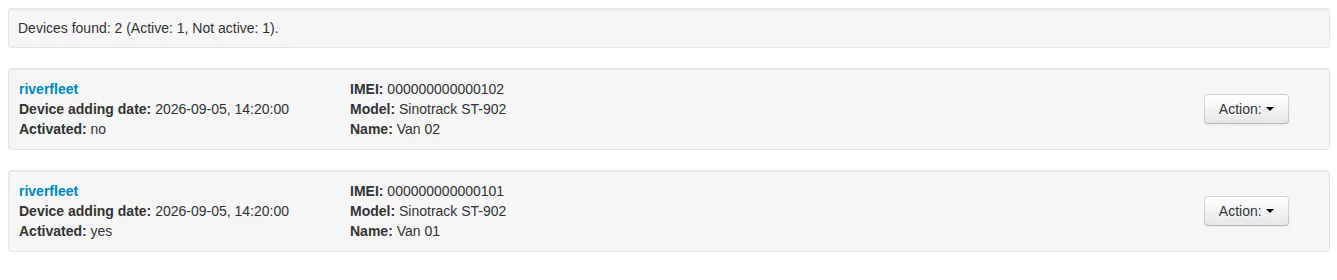
The overall device list. Adding date and service activation do not tell you when a tracker last sent a position.
Search and filters
The Search in devices panel on the right accepts a customer login and an IMEI. Without Exact search, you can enter part of a value; with it enabled, enter the complete value. If both fields are filled, the device must match both conditions.
Select Not active to show only devices that are not activated. The additional Group option groups these devices by customer so you can see how many each customer has. Clear grouping, or open all of a customer's devices, to inspect individual identifiers.
You can sort by device ID, username or IMEI. Select Ascending to reverse the direction. ID refers to the device record here, not the customer account.
If nothing is found, clear unnecessary filters first. Check the customer account and the spelling of the identifier. The device list search and Search in data are separate forms: the first finds registered devices; the second checks for an available data record.
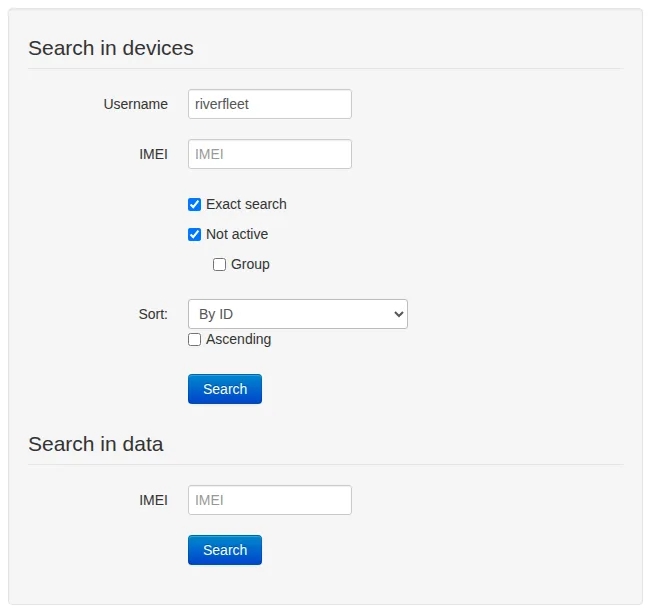
A complete login and the inactive-device filter are selected. The lower form checks data by identifier separately from searching the device list.
Activation and balance
Choose Action → All user's devices. The header shows the login, device count and balance in the customer's currency. A device that is not activated has an activate link followed by an amount.
This link performs a chargeable action; it does not simply open another screen. For an active customer account with sufficient funds, the system activates the device and deducts the service charge for the remaining days of the current month, including the activation day. The amount depends on the plan, customer currency and day of the month. Check the amount shown beside the link.
Before clicking:
- Check the customer, identifier, plan and currency.
- Make sure resuming the service has been agreed.
- Check that the customer account is active and has sufficient funds. A balance top-up alone should not be treated as confirmation that the device has been activated.
After clicking, check Active: yes, the updated balance and the expense entry. If the result is unclear, inspect it before trying again. An insufficient balance or an inactive customer account prevents this action from activating the device; the legacy interface does not always show a clear explanation.
Keep three states separate: access to the customer account, device service activation, and incoming positions. Activation does not switch on the physical tracker or send a command to establish a connection. An activated tracker may still have no new positions.
See the Customers chapter for top-ups. A manual credit affects financial accounting, so do not use a fictitious credit just to test activation.
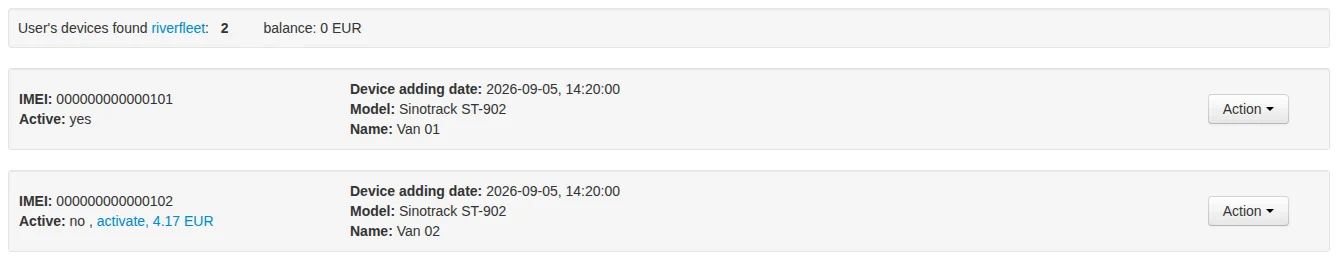
The demonstration balance is zero, so there are insufficient funds to activate the second tracker. The link shows the remaining-month charge on the screenshot date, not a full month's price.
Check the latest data
Choose Search data in the device's menu, or enter its full identifier in Search in data and click Search.
If an available record exists, the panel shows its date and time, model, coordinates, speed, altitude, direction and cellular network parameters. This is one latest available record, not route history or a continuously updating live screen. Refresh the page and compare the time to check for a newer record.
Look at how recent the date and time are, not just whether coordinates are present. Old coordinates show that data existed, but do not prove that the tracker is connected now. A speed of zero does not by itself indicate a fault: the object may simply be stationary.
The availability and meaning of additional fields depend on the model and the data it sends. A missing or zero value in one field is not sufficient to diagnose a hardware failure.

One diagnostic record with fictional readings. Check its date and time, not just whether coordinates exist.
If no data is found
No matches found means this check did not display an available record for that device. It does not identify the cause or prove that the tracker has never transmitted anything.
Check the following in order:
- Does the identifier match the device registered to your customer?
- Is the device in the normal device list, is it activated, and are there sufficient funds for service?
- Check power, connectivity and hardware settings against the instructions for the model.
- Check the map in the customer's account: is it showing only an old location?
If the issue remains unresolved, give support the customer login, model, identifier, time of the check and a screenshot of the result. Do not send the customer's password. Send identifiers and coordinates only through a private support channel.

An empty result. This message alone does not identify why data is unavailable.
Check before handing over
The device should belong to the correct account, the plan and currency should match your agreement, and paid service should be activated. Then check recent positions and the map with the customer. A device appearing in the administration list does not replace this final check.
Related articles
Troubleshooting and support
A website will not load, a customer cannot sign in, positions are missing or a payment is unclear: where to begin, what to tell support and which secrets to keep out of a report.

Customers
Create customer accounts, check their website, provider, plan and currency, and manage access. Understand manual top-ups and the difference between deactivation and deletion.
Getting Started
Build a GPS tracking business around equipment, installation and customer support. Understand your role, the platform's role and how your service fits together before you begin setup.
Administrator Guide: Contents
From your first website to everyday customer management: find the chapter you need to run your GPS tracking service.
Comments
Sign in to comment.
No comments yet.