Customers
Create customer accounts, check their website, provider, plan and currency, and manage access. Understand manual top-ups and the difference between deactivation and deletion.

Users lists your customers: the people and organizations to whom you provide monitoring. These are not additional administrators of your hosting portal. Customers sign in on your website, while you manage their service conditions in the administrator portal.
We will continue with Northline GPS and add a customer, Riverfleet, using the login riverfleet. Their provider is Northline Telematics, their plan is Fleet, and their currency is EUR. The address [email protected] and the displayed password are fictional. Use a real customer's own email address and a separate strong password.
Find a customer
Open Users. The list shows the login, activation status, website, email and balance. Click a login or choose Action → View information to open the customer record.
Search by login, email or website, choose a sort order, or show inactive accounts. If you cannot find someone, clear unnecessary filters and check whether they registered on another website.
Funds on user balances at the top covers all customer assignments in your hosting account, grouped by currency. Filtering the list does not turn it into a total for only the matching customers. These are customer balances, not your payout amount.
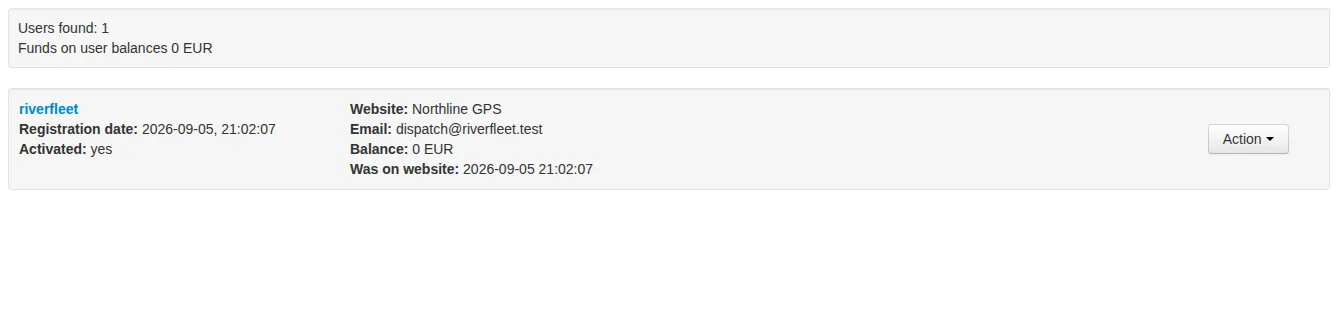
A new active account with no top-ups. Click the login to open its record.
Create an account manually
The Create new user form is on the right, below Search. Have a website, provider and plan ready, then complete:
- Website: where this customer will sign in.
- Plan: select the customer's service plan explicitly.
- Currency: the required currency or From plan settings.
- Company: your company or individual provider supplying the service.
- The customer's login, password and email.
There is an important legacy naming issue: From website settings in the plan and company selectors actually uses the default plan and company for your hosting account. These may differ from the assignments on the selected website. Select them explicitly for your first customer and verify them afterwards.
Use Latin letters and digits for the login, with at least four characters. It is stored in lowercase and must be available across the platform. This interface also accepts only Latin letters and digits for passwords: use a long, unique combination rather than the short minimum in the tooltip.
Click Create and find the customer in the list. Manually created accounts are active immediately; this flow does not require email registration confirmation. Do not expect an automatic welcome email containing access details. Share your website address, login and temporary password through an agreed secure channel.
If creation fails, check login availability, required fields and assignments. The old email validator may reject some valid modern domains. Contact support rather than replacing the customer's actual address with a made-up one.
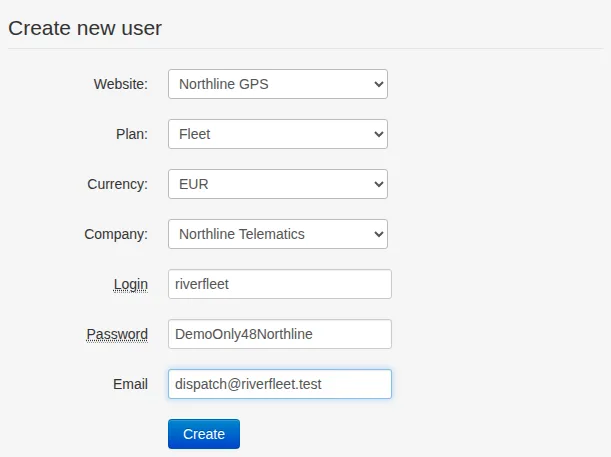
Assignments are selected explicitly. The email and password are demonstration data only; do not use them for real accounts.
Check the customer record
Check the account status and the Hosting section: website, domain, company, plan, device price and SMS price. For our customer, the expected values are Fleet, EUR 5 and EUR 0.10 per SMS.
Company here means your provider, not the customer's organization. The customer's own business details, if completed, appear separately further down.
Finance shows the current balance, top-ups, spending and latest top-up. Historical totals retain their currencies; do not simply add different currencies together and compare the result with one current balance. Archived spending may not yet include today, while the balance and top-ups are already current.
The Finance and Devices headings link to the corresponding sections for this customer. A new account has no devices or spending yet. Creating the account does not automatically add a GPS tracker or fund the balance.
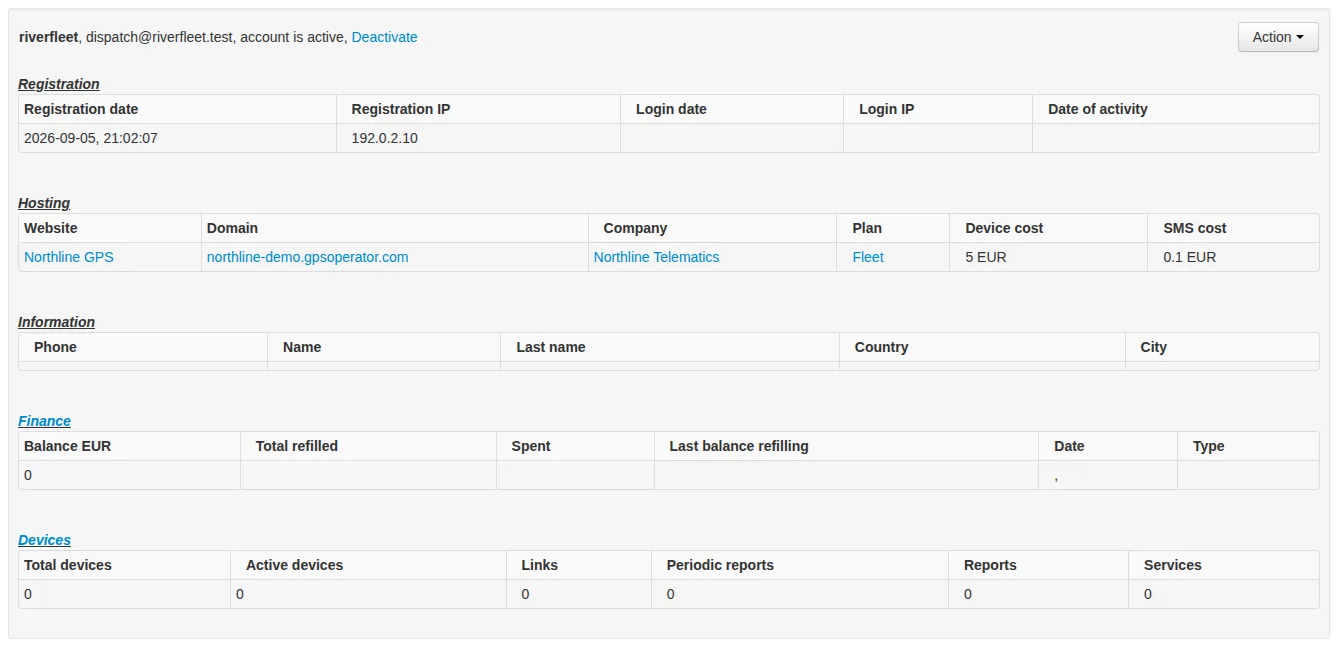
Immediately after creation: no devices, spending or sign-in history yet.
Change assignments and contact details
Variable parameters on the right contains separate forms. Each has its own Change button; one button does not save the entire column.
- Website linking changes the customer's website. Give them the new address and check sign-in there. The new website's plan and company are not assigned automatically.
- Plan changes this customer's assigned plan, not the plan's prices or other customers' assignments. Check the displayed price after saving.
- Company changes the customer's provider. It does not reissue existing documents: review unfinished settlements separately before making this change.
- Email changes the account's address. Confirm the spelling with the customer.
- Password sets a new password. The field is visible, not masked: keep it away from bystanders and do not include the filled form or the URL after saving in support screenshots.
Changing the plan does not automatically change the currency. Change currency and recalculate balance is a separate operation that converts the balance into the chosen currency using platform rates. Check the existing currency, balance and plan first. This is neither a language selector nor a cosmetic change to a currency label.
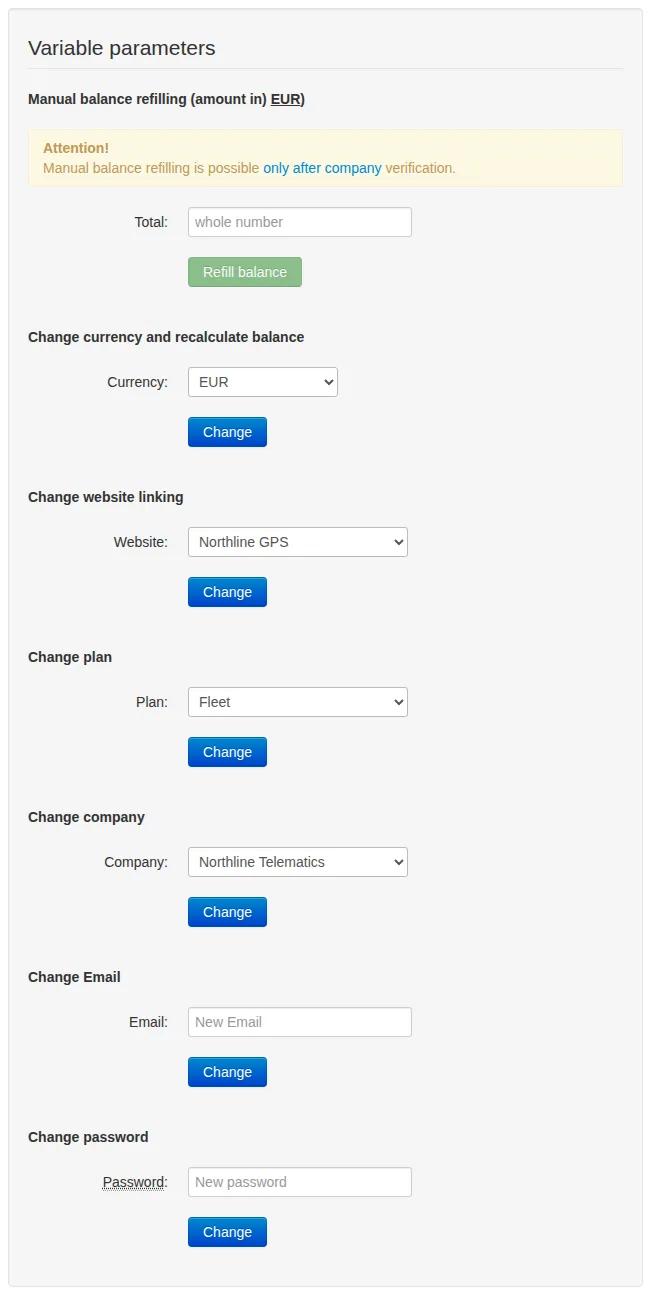
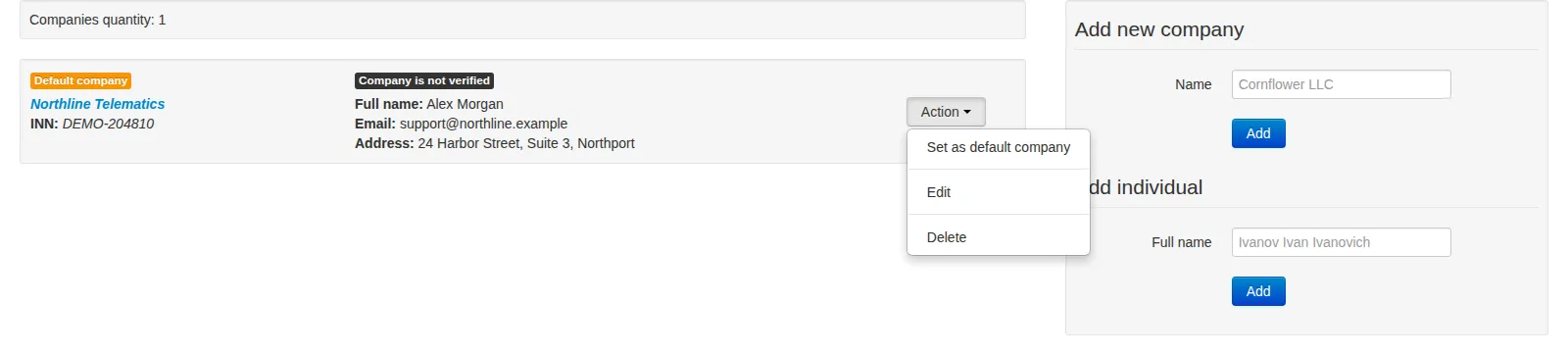
Each operation has its own button. Manual top-ups are unavailable until the assigned demonstration company is verified.
Deactivate or delete
Deactivate disables the customer's account access. Their data and assignments remain, and Activate enables the account again.
Do not treat deactivation as a guarantee that charges stop. It changes account status but does not disable devices or change the plan. If service needs to be suspended, review devices and paid services separately.
Delete is different. It is available in the customer record's action menu and asks for confirmation. It removes the account and queues further data cleanup. This is not a temporary block with a quick undo button.
For an account with payments, devices or documents, first decide how service and required data will be handled. Financial history does not necessarily disappear when the account is deleted. Never test deletion on a live customer.
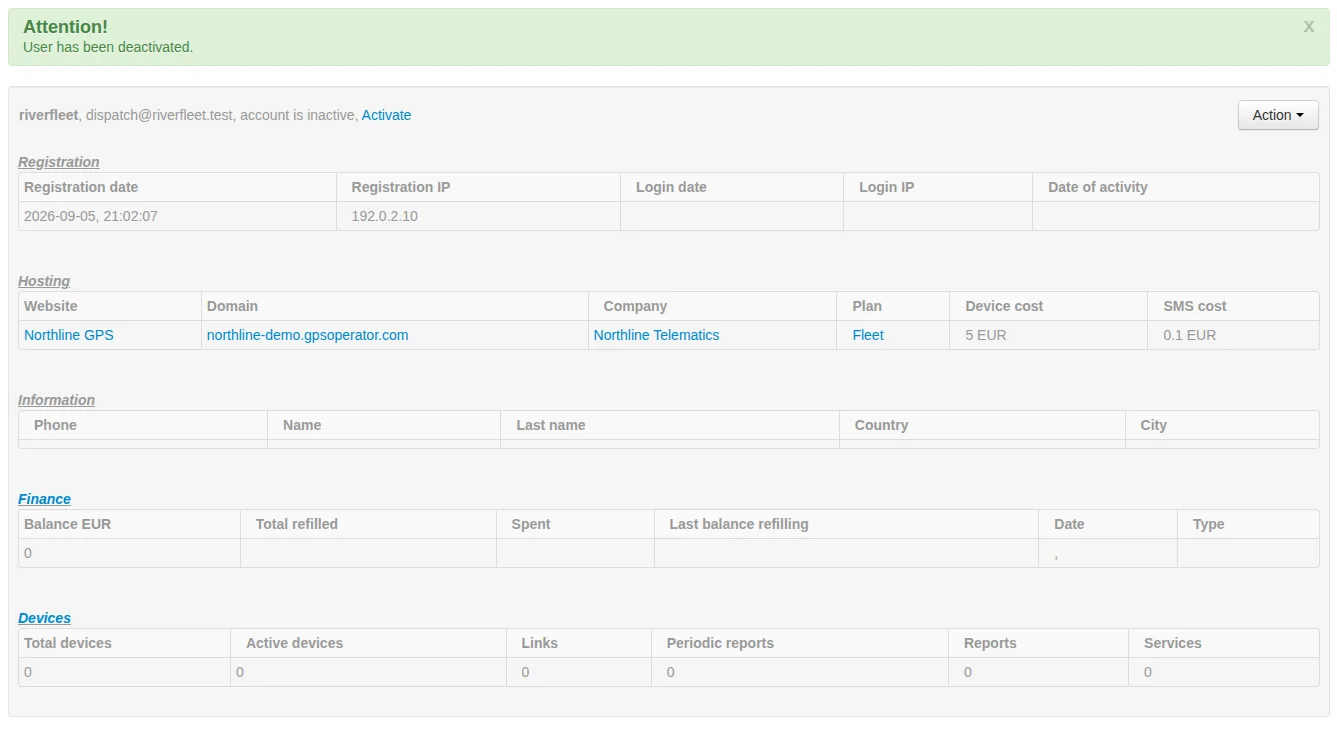
Deactivation leaves the account in the system so it can be activated again. It is not deletion.
Top up a balance manually
The right column includes Manual balance refilling. It is available only after verification of the company assigned to this customer. If the button is disabled, open that company and check its status; having a different verified company in the portal is not enough.
Enter a whole number in the customer's currency, shown above the form. For example, 10 means EUR 10, not 10 cents. Do not enter fractional amounts in this legacy form.
Refill balance creates a real top-up entry and increases the customer's balance. It does not collect money from a bank, payment provider or the customer's card. In hosting accounting, it is credited to the non-cash balance component and affects subsequent settlements. Do not use it as a free bonus without understanding those consequences.
Afterwards, check the new balance and latest top-up entry. If the page stalls or the outcome is unclear, refresh the customer record and check the history before submitting the same amount again. Do not assume this button is fully protected against duplicate credits.
Payments and settlements will be covered in the finance chapter. For now, remember that a manual top-up changes the financial records, not just a displayed number.
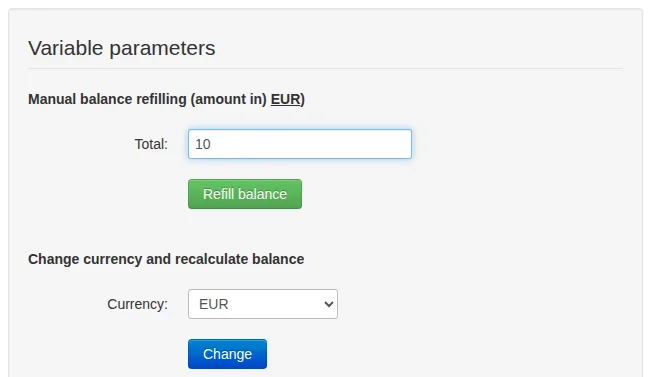
For a verified provider, 10 means EUR 10. The amount is only entered here; the button has not been pressed.
Hand over access
Before inviting a customer:
- Check the correct website address and HTTPS.
- Verify the login, email, status, company, plan and currency.
- Share access details without exposing the password in public correspondence.
- Check sign-in with the customer and explain payment and support arrangements.
- Continue to adding a device.
If customers register themselves, they receive their website's plan and company, unlike the hosting-wide defaults described for manual creation. See Websites for that flow.
Related articles
Administrator Guide: Contents
From your first website to everyday customer management: find the chapter you need to run your GPS tracking service.
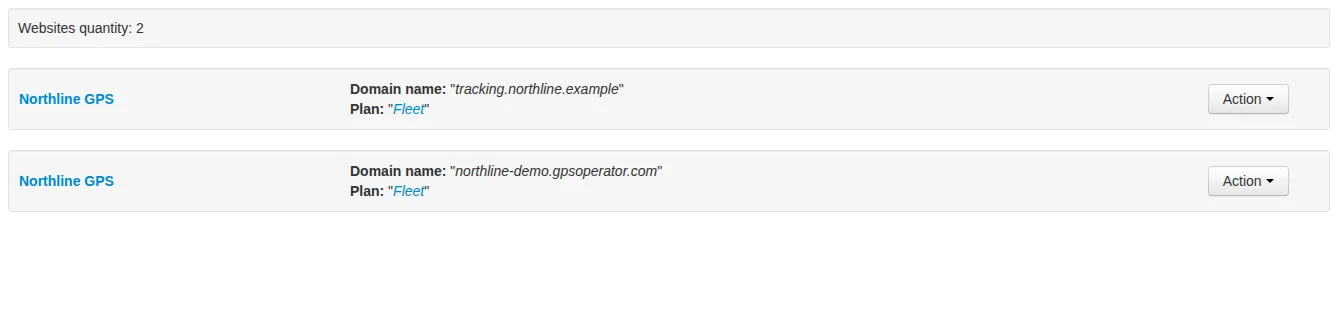
Websites
Set up your customer-facing website: its address, plan, provider, branding and languages. Choose who can register and check everything before inviting customers.
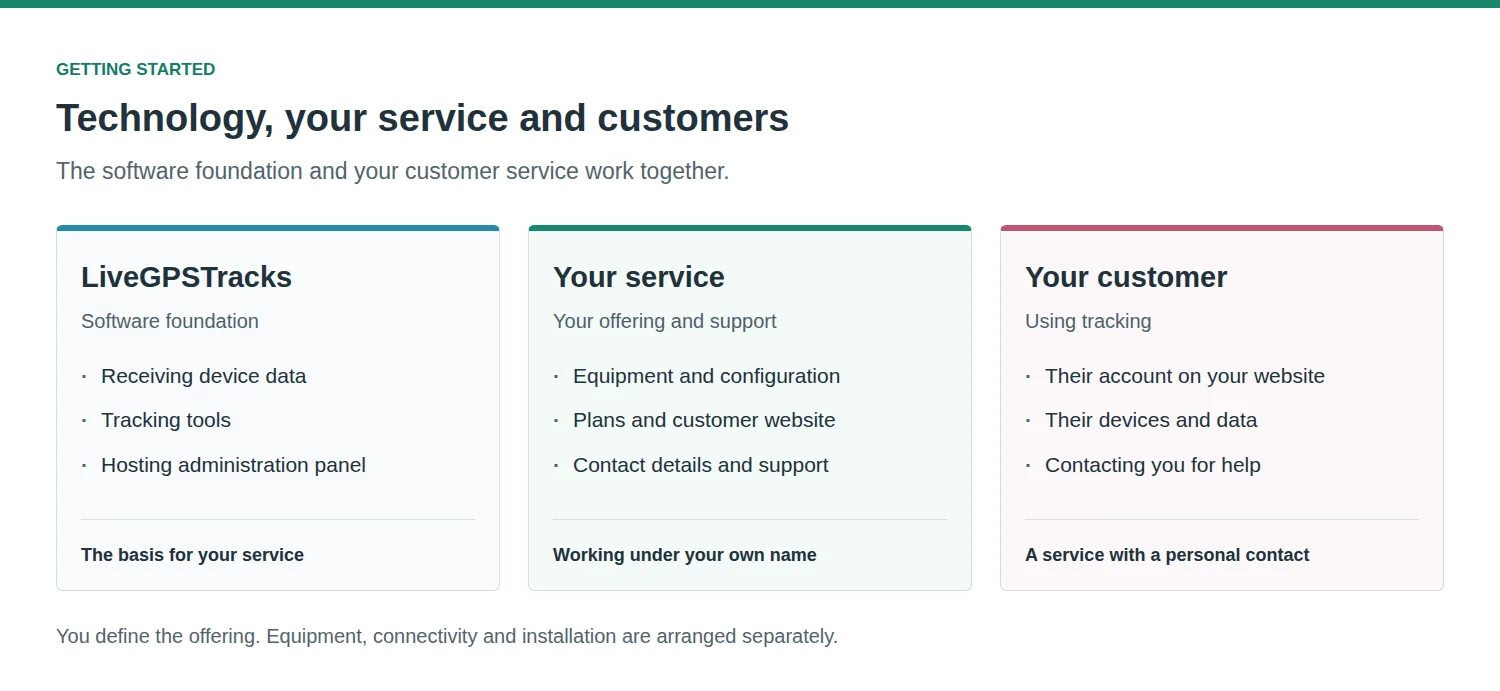
Getting Started
Build a GPS tracking business around equipment, installation and customer support. Understand your role, the platform's role and how your service fits together before you begin setup.
Companies and Individual Providers
Manage service provider records, customer-facing contacts, default assignments and company verification without confusing them with customer accounts or payout details.
Comments
Sign in to comment.
No comments yet.